
FlightScope Mevo Gen 2 setup + troubleshooting for home golf simulators (Windows 11 + GSPro)
Read time: ~7 minutes
The FlightScope Mevo Gen 2 indoor setup requires roughly 4.8 - 5 m (16 ft) in total space: 2.4 m (8 ft) behind the ball and 2.4 m (8 ft) of ball flight to the screen or net. Place the unit directly behind the ball and in-line with your target. If your Windows 11 laptop connects to the Mevo Wi-Fi but FS Golf cannot see the radar, test whether antivirus software is blocking local communication. In my case, I had to look past the firewall and I uncovered Norton was the cause and an “always allow” rule fixed it.
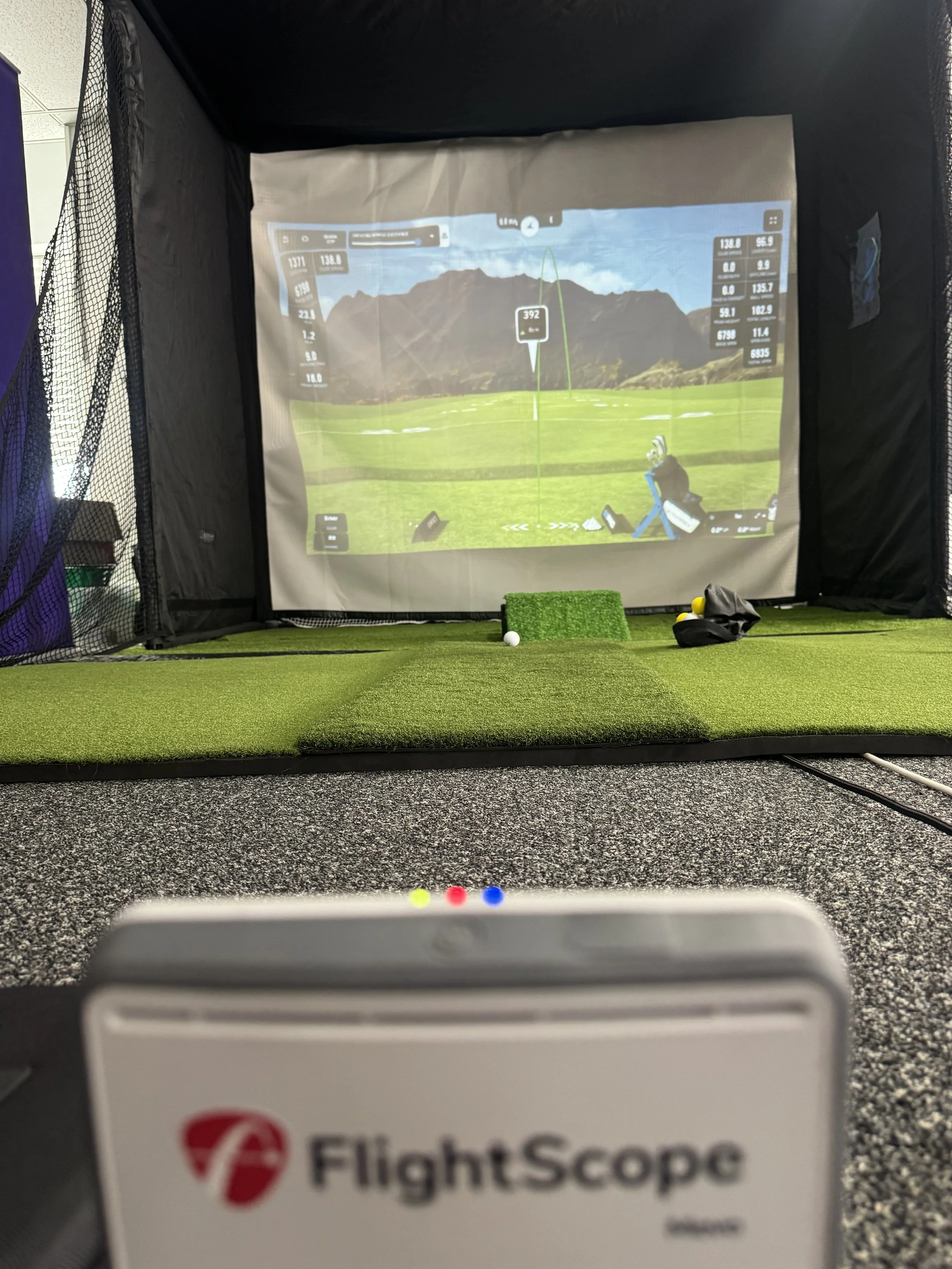
What this guide covers
You will learn how to:
Place the FlightScope Mevo Gen 2 at the correct distance and alignment indoors
Connect using the Mevo’s direct Wi-Fi hotspot (the most common home-sim workflow)
Fix the “Mevo not listed” problem on Windows 11 when the laptop is connected to the Mevo Wi-Fi but the FS Golf app cannot see the radar
Confirm a stable data path into GSPro
Everything in the setup section comes from FlightScope’s own placement requirements.
Everything in the GSPro section references GSPro’s Open Connect behavior.
The Windows 11 + Norton fix is labeled as my real-world case, not a universal guarantee.
If you want to see how a professional mobile golf setup looks, explore our mobile golf simulator hire packages ↗. Or perhaps you’ve already planned everything out and just need an external sounding board before purchasing a launch monitor. Book a complimentary consultation ↗ and our team will be happy to assist you.
How do you set up the Mevo Gen 2
Minimum indoor distance
FlightScope states the minimum indoor space requirement is 16 ft total, made up of:
8 ft behind the ball
8 ft of ball flight (ball to screen/net)
Convert that to metres
8 ft = 2.44 m
16 ft = 4.88 m
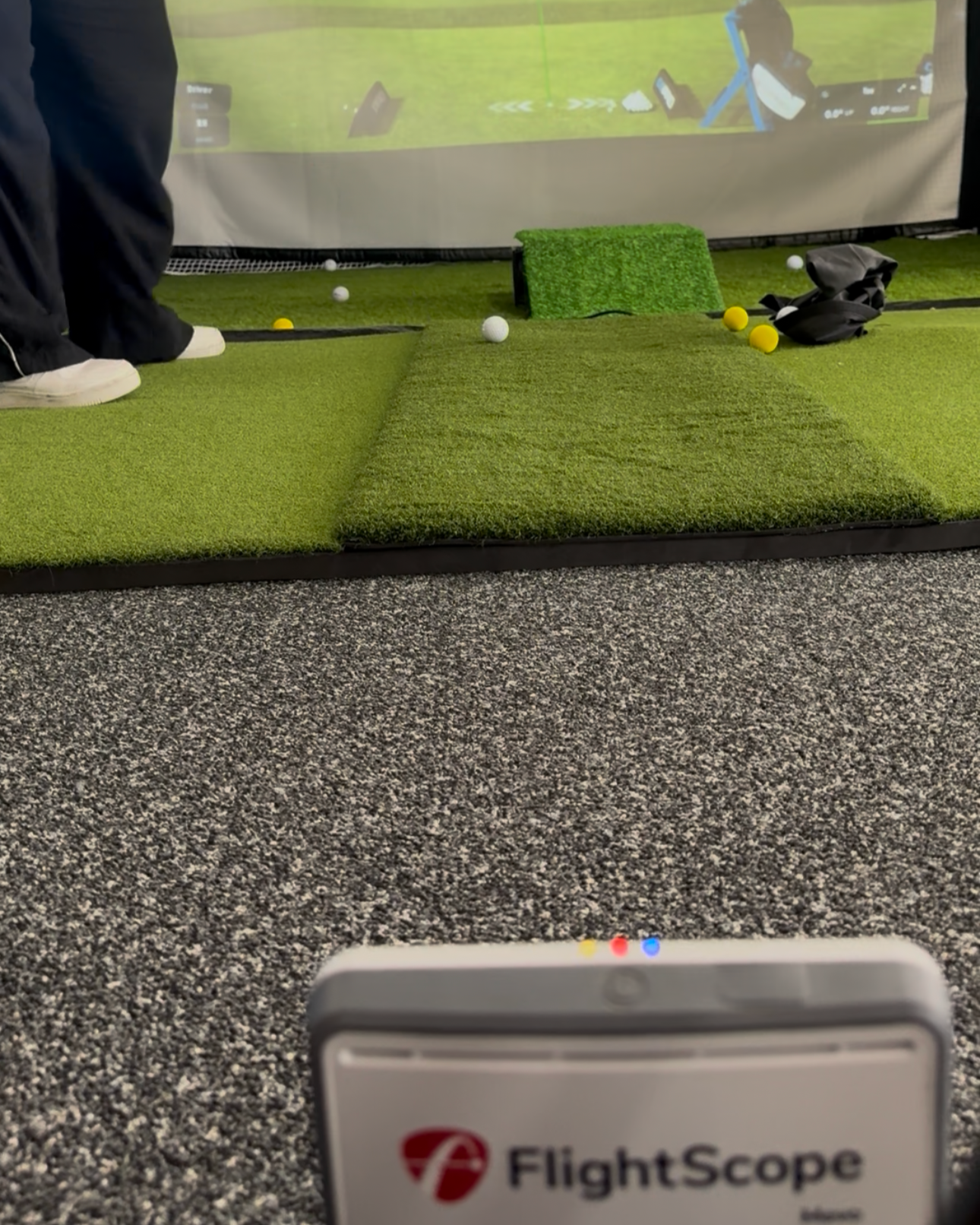
In our experience, shots seem to be most accurate when we set the Mevo Gen 2 ~2.4 m behind the ball and we position the strike zone ~2.4 - 3.2 m away from the impact screen. FlightScope says for accurate readings, place the Mevo Gen 2 approximately 8 ft directly behind the golf ball and in-line. Use the ‘Camera’ feature in the FlightScope app to determine if the launch monitor is in-line with the golf ball and impact screen.
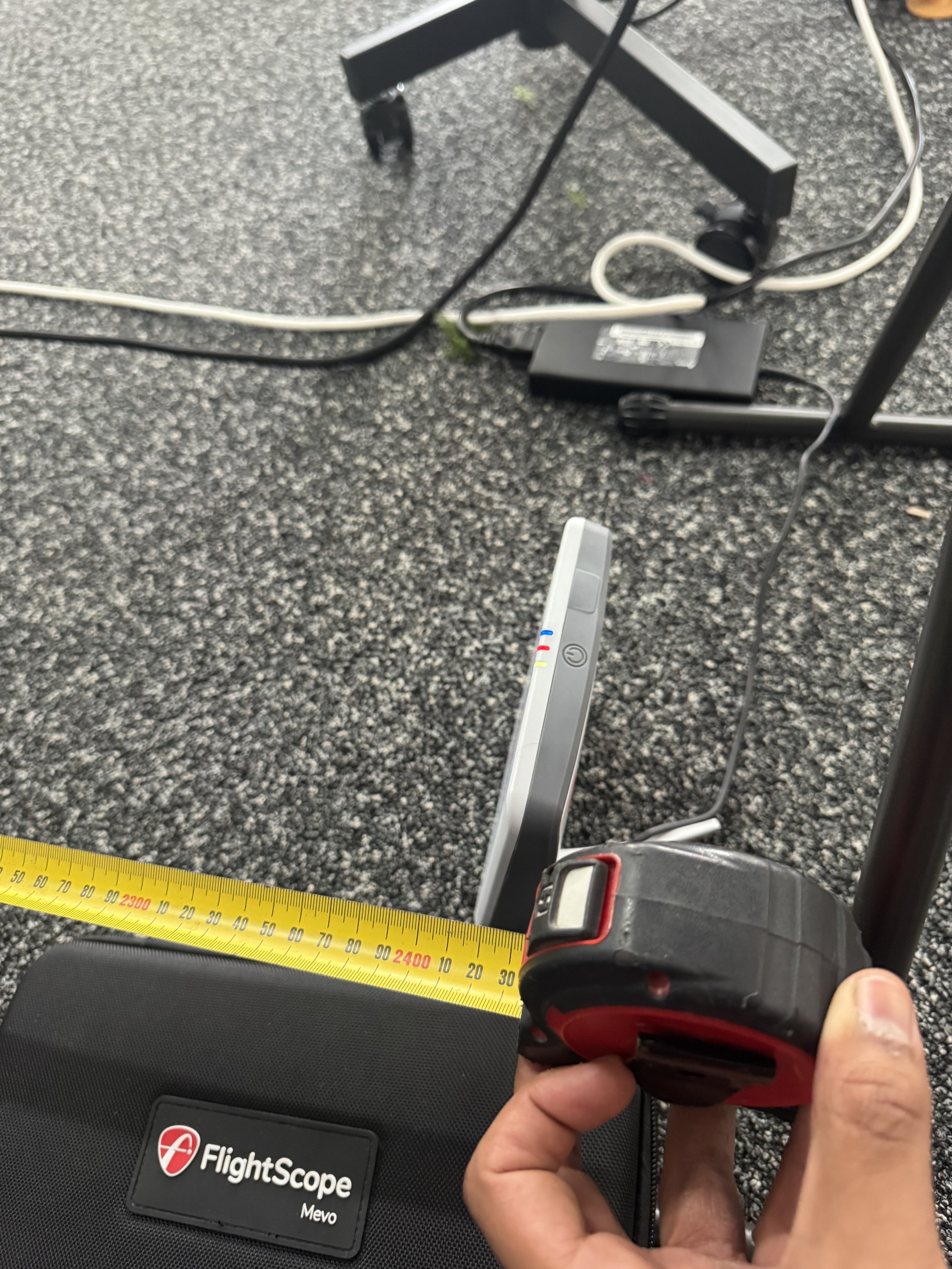
Why “in-line” matters
If the unit is rotated relative to your target line, the device’s “straight” reference shifts. This means that shots which are truly straight will appear to have a left/right bias, both in shot shape and numbers from the simulated ball flight. If you notice consistent slices/draws on the golf simulator, investigate the alignment of the launch monitor before you start changing your golf swing. It’s a much easier fix!
A repeatable alignment routine (do this every session)
Lock the ball position
Mark the hitting spot on the mat so the ball goes in the same place each time.Measure 2.44 m behind the ball
A small distance change can affect consistency so accuracy is crucial in this step.Square the unit to the target line
Stand behind the unit and confirm it is visually aligned to the centre of your impact screen. Consider purchasing a tri-levelling stand if your setup isn’t perfectly stable and flat. Even a 0.1 degree deviation in the tilt or the role of the monitor can impact it’s accuracy.Hit 5 test shots
Use one club and look for consistency. If direction looks consistently wrong, re-check alignment before changing any software settings or your swing.
Connecting to FS Golf using the Mevo’s direct Wi-Fi hotspot
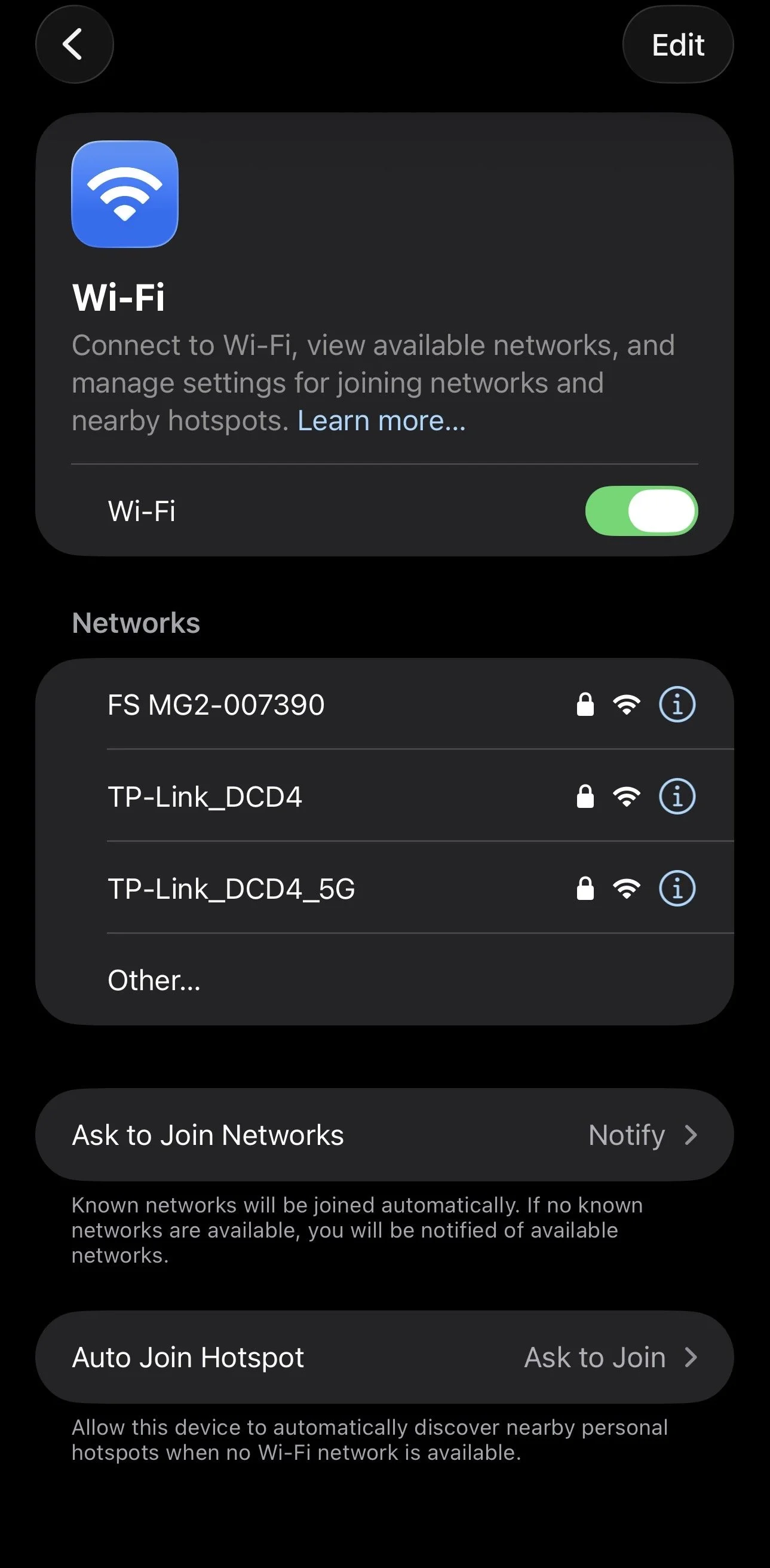
FlightScope states the unit connects to your device using Wi-Fi and does not require an internet connection to run. So the common workflow is to connect your phone/laptop directly to the Mevo’s own Wi-Fi network, then open the FS Golf app. The Mevo’s Wi-Fi network tends to be password protected, and often the password will simply be the serial number of the launch monitor. For example:
Serial Number: FS MG2-123457
Password: MG2-1234567
iPhone workflow (baseline test)
Attempt to connect the Mevo Gen 2 to an ios device such as an iPhone or iPad. First download the FS Golf app from the Apple App store, and ensure its updated to the latest firmware available. This tends to happen automatically if you’re connected to your home Wi-Fi. Once the app is successfully downloaded, open it up and turn the Mevo Gen 2 on (you should hear a series of single beeps followed by a double beep. You will also see a solid green line on the monitor with an occasional flashing blue light). Your phone can now connect to the Wi-Fi signal being emitted by the launch monitor. If connected successfully, this indicates your Mevo’s direct hotspot is functional in broadcasting Wi-Fi and pairing with FS Golf.
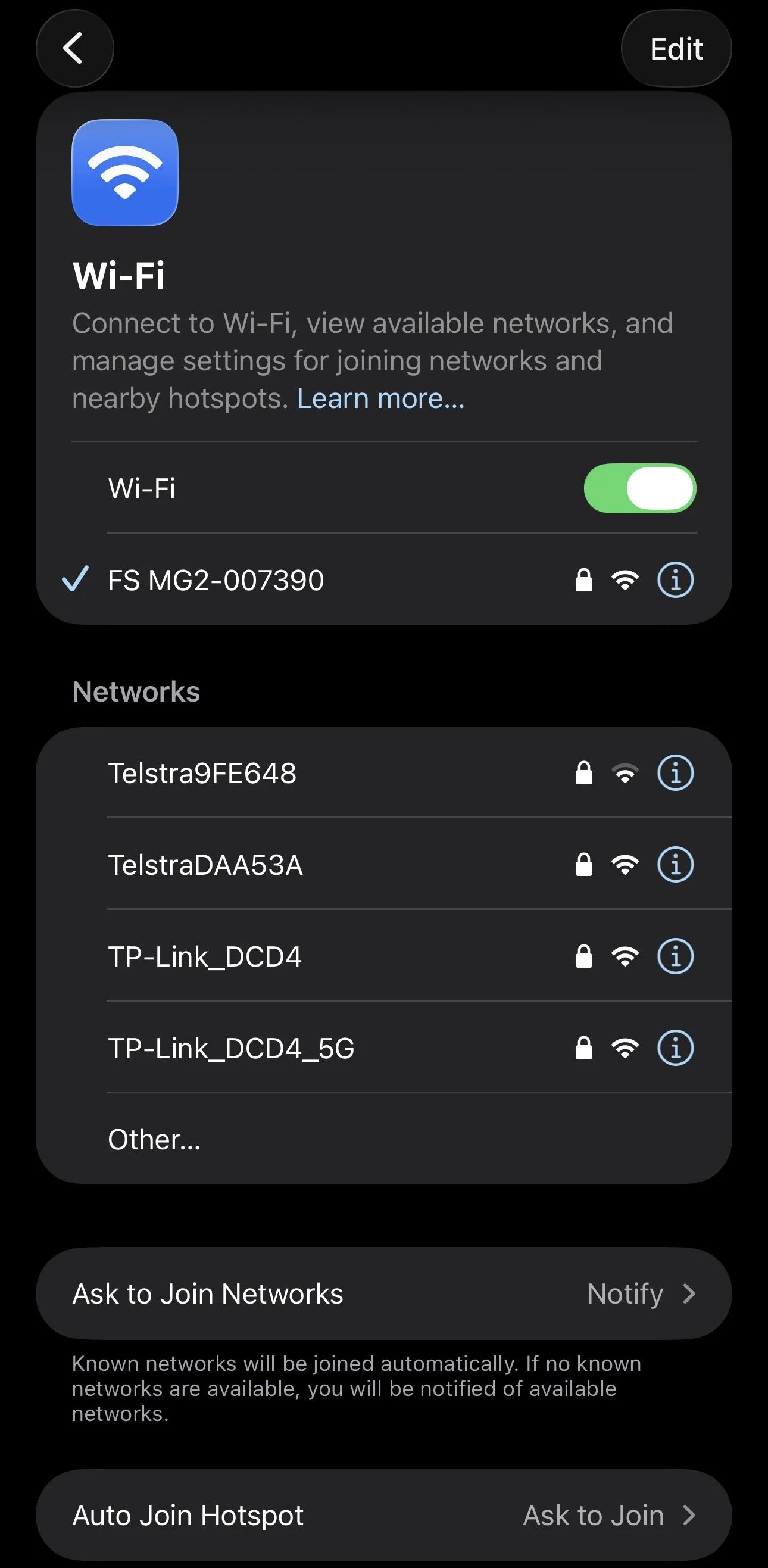
If your goal is to keep FS Golf on an iPhone/iPad, then you can close the blog here and start hitting golf balls. Keep reading if you’re interested in connecting your Mevo Gen 2 to the internet using a Windows PC or Windows Laptop.
Windows 11 problem: Laptop connected to Mevo Wi-Fi, but FS Golf cannot see Mevo’s network
I encountered a situation where my phone could connect easily to the Mevo Gen 2, and it could even register my shots accurately on the mobile app. However, an issue arose when I repeated the same process to connect my Windows 11 Laptop to the Mevo Gen 2’s Wi-Fi network.
The symptom
Windows 11 PC/laptop joins the Mevo’s Wi-Fi hotspot
You open FS Golf app on PC/laptop and
The launch monitor does not appear as an available radar (not listed)
This symptom pattern usually points to the PC blocking local network discovery or traffic. These are steps that isolated the cause in my case of a connection error.
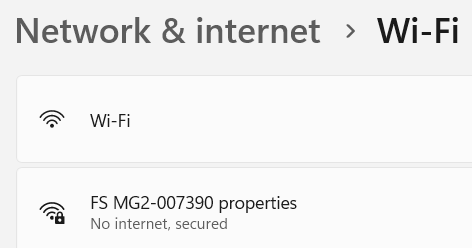
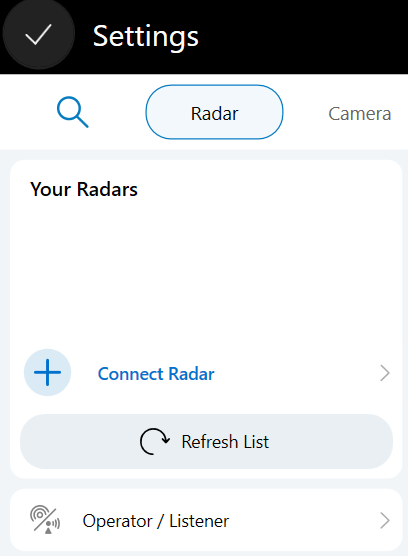
Screenshot from FSGolf app
FS Golf app cannot register the Mevo Gen 2 as a connection despite Windows 11 laptop already connected to the Gen 2’s Wi-Fi Hotspot
My real-world fix
In my case:
Rebooting laptop and launch monitor did not fix the connection issue
Forgetting the network and re-connecting did not fix it
Disabling Windows Firewall alone did not fix it
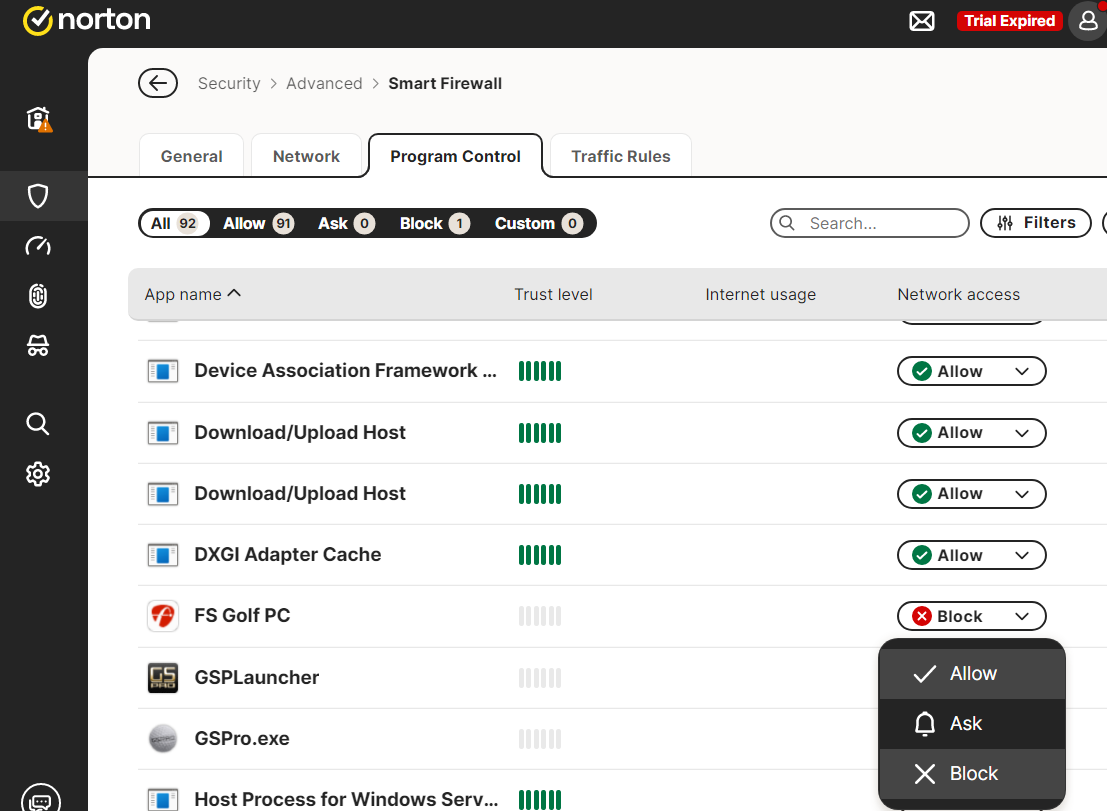
Temporarily disabling Norton Antivirus software did fix it
Then I set Norton to allow FS Golf, ensuring this connectivity issue didn’t repeat itself.
This result is consistent with the antivirus software blocking a local connection which does not need to be blocked. Since “allow” has been enabled on Norton, this issue has not been encountered again. My recommendation to others that are facing technical issues with connecting the Mevo to their Windows computer would be to follow the above steps in the same order.
Safe troubleshooting flow (do this in order)
Confirm the Mevo works on iPhone first
This prevents you wasting time on PC settings when the core link is fine.Join the Mevo hotspot on Windows 11
Then open FS Golf and check whether the device appears.Temporarily disable third-party antivirus firewall features (test only)
If the Mevo suddenly appears, you found the category of problem.Re-enable protection and create an allow rule
Use Norton’s allow/exception feature for FS Golf so you keep security on while allowing the app to communicate.Re-test after a full reboot
You want the configuration to persist, not only work in a single session.
Important: Only disable security software long enough to test. Turn it back on and use allow rules. If you are unsure, get IT help.
Quick connection fixes (do these before deeper troubleshooting)
These fixes target the most common reasons a device connects to the Mevo’s Wi-Fi but the app cannot discover the radar.
Fix 1: Update firmware inside FS Golf
FlightScope publishes Mevo Gen 2 firmware guidance and instructs users to update to the latest firmware in the FS Golf app. Firmware updates can resolve connectivity and stability issues.
Action
Open FS Golf on your iPhone (your known-working device).
Check for firmware update prompts and apply them.
Power cycle the Mevo after updating.
Fix 2: Confirm you do not need internet for the Mevo Wi-Fi link
FlightScope states Mevo does not require an internet connection to run. When you connect to the Mevo hotspot, your laptop may show “No internet” and that is normal.
Action
Ignore “No internet” warnings.
Focus on whether FS Golf can discover the device.
Eventually, once you have successfully connected to the Mevo’s Wi-Fi, there is a hidden option to select Streamlined Wi-Fi in the FSGolf app which enables you to connect to both your home Wi-Fi and the Mevo’s Wi-Fi. This is particularly helpful if you integrate your setup with a third-party simulation software such as GSPro.
P.S. We attended a booking where we relied on the Streamlined Wi-Fi setting of the Mevo Gen 2 and after following the steps, the Gen 2 stopped emitting it’s own Wi-Fi. This meant that we weren’t able to connect to the launch monitor, even in an offline capacity. With the help of FlightScope’s LiveChat, the solution to this annoying issue is to turn off the home/venue Wi-Fi (which we could not do as we had set the simulator up in a corporate hotel) in the first instance. If this isn’t possible, then take the Gen 2 away from the Venue’s Wi-Fi by leaving the premises, restart the device and after 5-10 minutes the Gen 2 will begin to re-emit it’s own Wi-Fi again.
The above issue could be a blog post by itself but, if you are currently encountering issues with the Mevo Gen 2’s Streamlined Wi-Fi feature then consider contacting us and we’ll help you navigate the problem and some solutions ↗.
Fix 3: Windows 11 network profile and discovery settings
If Windows treats the Mevo hotspot as a restricted network, discovery can fail. Microsoft guidance for local device access commonly includes enabling Network discovery and using a trusted profile where appropriate.
Action (Windows 11)
Set the connected network to Private (when appropriate in your home environment).
Ensure Network discovery is enabled for that profile.
Re-open FS Golf and check the radar list again.
Fix 4: Remove interference variables during first-time pairing
FlightScope notes radar is generally unaffected by low light, but performance may be affected by fluorescent lighting. Remove variables while you establish a stable baseline connection and read quality.
Action
For your first successful session: turn off fluorescent lights if possible or move to a different lighting source.
Keep only the essentials powered near the setup.
Fix 5: If you need spin indoors, use FlightScope-approved ball tracking aids
FlightScope states metallic stickers are needed indoors for Mevo Gen 2 to accurately measure ball spin. If you are chasing “why does spin look wrong” issues, confirm you are using the required aids or RCT golf balls.
Action
Use the metallic stickers when you are indoors and want reliable spin data.
Getting Mevo data into GSPro (what matters, without guessing)
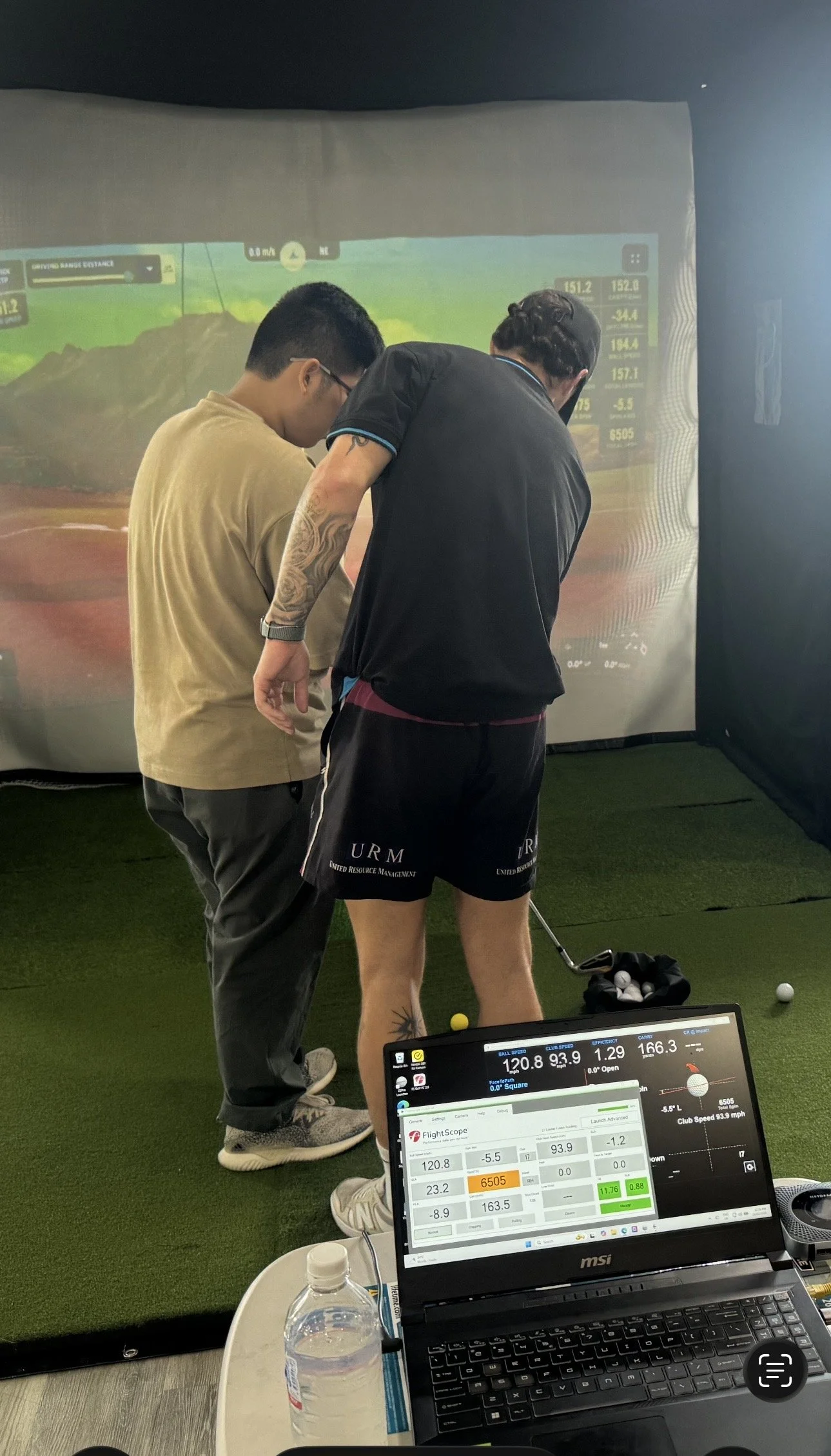
GSPro’s documentation states GSPro Connect uses a socket interface and maintains constant two-way communication that includes shot data, ready signals, and a heartbeat. That means your GSPro link must stay live. If something blocks the connection or the connector stops running, GSPro stops receiving shots.
A stable startup order
Use this order to reduce connection errors:
Start your Mevo and confirm it works in FS Golf (or your FlightScope workflow)
Start GSPro and open the GSPro Connect interface
Start the FlightScope-to-GSPro integration/connector you use
Hit test shots and confirm GSPro is receiving data
If Windows security software blocked FS Golf discovery, it can also interfere with a GSPro connector path.
Quick checklist before every session
Mevo is 2.44 m behind the ball
Ball is at least 2.44 m from screen/net (minimum indoor flight)
Device is in-line with target and centred
iPhone baseline test works (optional but useful)
Windows 11 allows FS Golf (Norton/AV allow rule set if needed)
GSPro connector path stays live (no dropouts)
If you are still deciding whether Mevo Gen 2 is the right choice for your setup, read my other post, “Best Launch Monitor for Your Home Golf Simulator↗ .”It breaks down launch monitor types, what matters for indoor sims, and which devices fit different budgets. Use this Mevo guide once you have chosen your device and want consistent setup and stable connections.
Want help planning your setup? Explore The Pop Up Golf packages ↗ or book a complimentary consultation ↗ to discuss your room and goals
-
FlightScope states a minimum of 16 ft total, made up of 8 ft behind the ball and 8 ft of ball flight to the screen/net. That equals about 4.88 m total with 2.44 m + 2.44 m.
-
No. FlightScope states the unit does not require an internet connection to run. Your laptop showing “No internet” while connected to the Mevo hotspot can be normal. It is possible to use the ‘Streamlined Wi-Fi setting in the FS Golf app to connect to both your home Wi-Fi and the Mevo’s Wi-Fi at the same time.
-
If you attempted Streamlined Wi-Fi in the FS Golf app and the connection failed, the Mevo Gen 2 can stay stuck trying to join the last known Wi-Fi network, so its direct Wi-Fi hotspot won’t appear. Either turn off your home Wi-Fi router or move the Mevo well out of range of that Wi-Fi network, usually 20m - 30m outside the house. Then restart the Mevo. After a few minutes, it should start broadcasting its own Wi-Fi hotspot again.
-
In many cases, security software blocks local network communication. In my setup, Norton antivirus software blocked discovery until I created an “always allow” rule for FS Golf.
-
Consider updating the firmware of your FlightScope Mevo Gen 2. Updates for the Mevo Gen 2 occur through the FS Golf app. Update first before you investigate more complex causes for connectivity issues.
-
FlightScope says radar does not require direct sunlight and is unaffected by low light, but performance can be affected by fluorescent lighting. If you are troubleshooting, remove fluorescent lighting as a variable.
-
GSPro uses a live socket interface (Open Connect) that expects ongoing communication including shot data and status messages. This is why dropouts usually trace back to the connector path or network/security interference. Consider connecting your laptop/PC to your home internet via ethernet and connect to the Mevo’s Wi-Fi hotspot as well. This will enable you to use GSPro with the Mevo Gen 2.